 Active Intercom
Set up your crew intercom in 5 minutes
From sign-up to the first push-to-talk call: create a workspace, add channels and people, put the app on the crew's phones.
- An e-mail address
- Phones (iPhone or Android) or laptops for the crew
- Headsets — wired is safest, Bluetooth works
Create a workspace
Open app.activeintercom.com/signup.html, enter your e-mail, a password and a workspace name. Confirm the e-mail we send you. The 7-day trial starts immediately — no card needed.
Create your channels
Open Admin (gear icon in the top bar) › Channels. Add one channel per group that needs to talk: for example DIRECTOR, CAMERAS, AUDIO, GRAPHICS, REPLAY, FIELD. Give each a colour — the colour appears on every key.
Add your crew
Admin › Users: create a login for each person and choose their role. Tick Commentator for commentators — they get the commentator console automatically. Send each person their username and password.
Install the app
The crew installs the app from get.activeintercom.com/ios or get.activeintercom.com/android and signs in. In the control room a laptop browser is enough: app.activeintercom.com. Audio keeps running with the phone locked in the iPhone and Android apps.
Make the first call
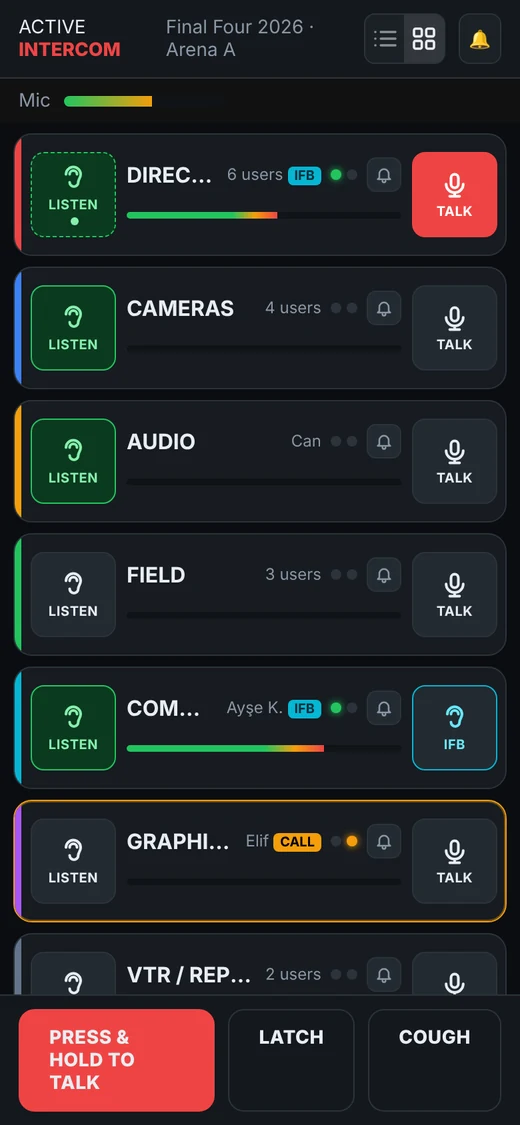
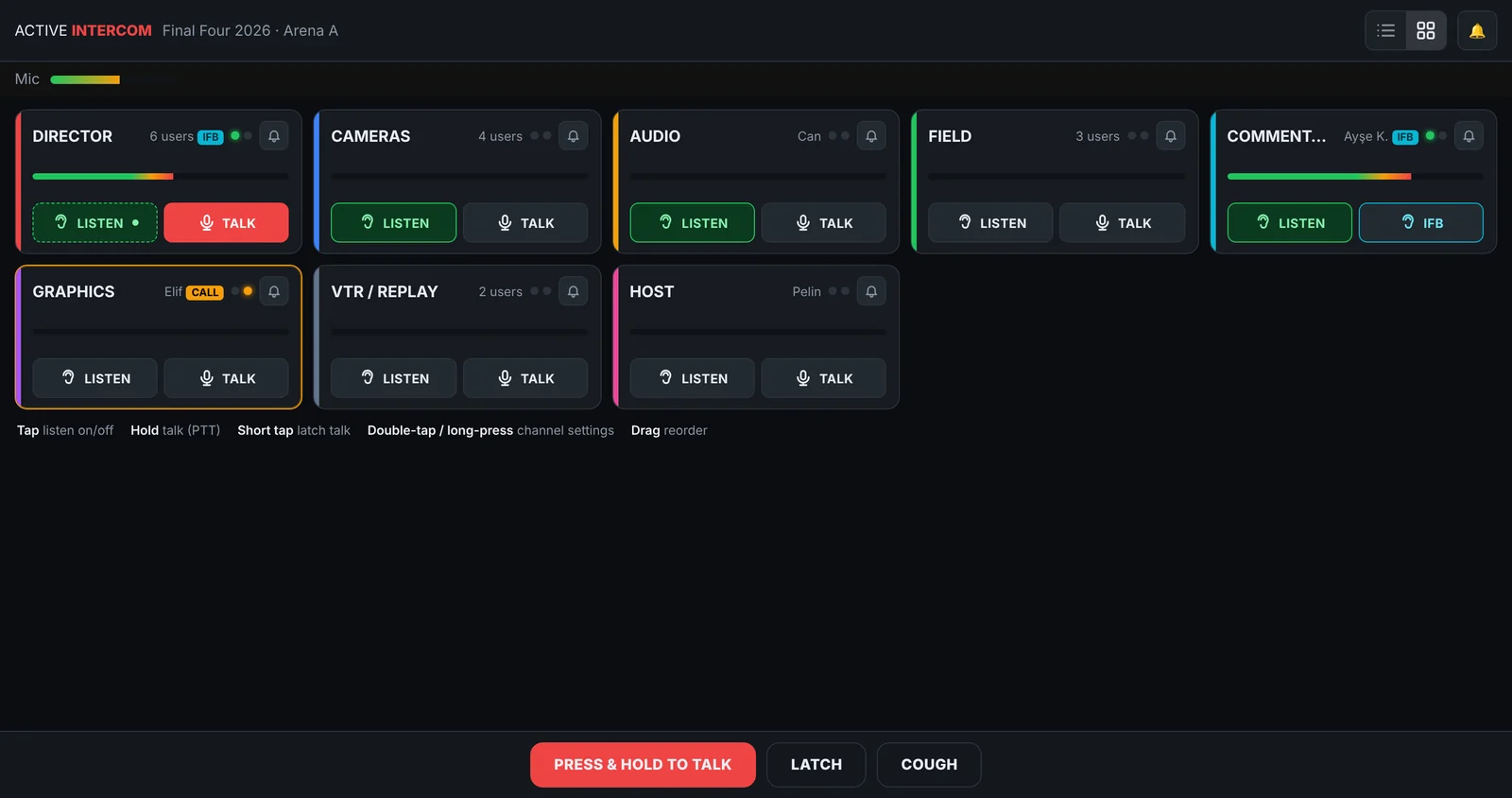
Everyone taps LISTEN on the channels they need. Hold TALK to speak on a channel, or hold the big PRESS & HOLD TO TALK button to speak on every channel you listen to. A short tap on TALK latches the mic open; tap again to close.
Optional: decide who sees what
With bigger crews open Admin › Matrix and give each role only the keys it needs — see the Panel view & key matrix guide.
Troubleshooting & tips
- Nobody hears me
- Check that the other person has LISTEN on (green) for that channel and that your Mic meter moves when you speak.
- Audio stops when the phone locks
- Use the iPhone / Android app, not the browser — the browser pauses audio when the screen turns off.
- Strict venue Wi-Fi
- Active Intercom falls back to its own TURN relay automatically; mobile data also works.
Share this guide
Related solutions
More guides
Start 7-day free trial
No card required · set up in 5 minutes
Start free