 Active Intercom
Panel view and key assignment matrix
Hardware-style keys for every channel, and a matrix that gives each role exactly the keys it needs — saved per production.
- Admin rights in your workspace
- Your channels and users created
Switch to Panel view
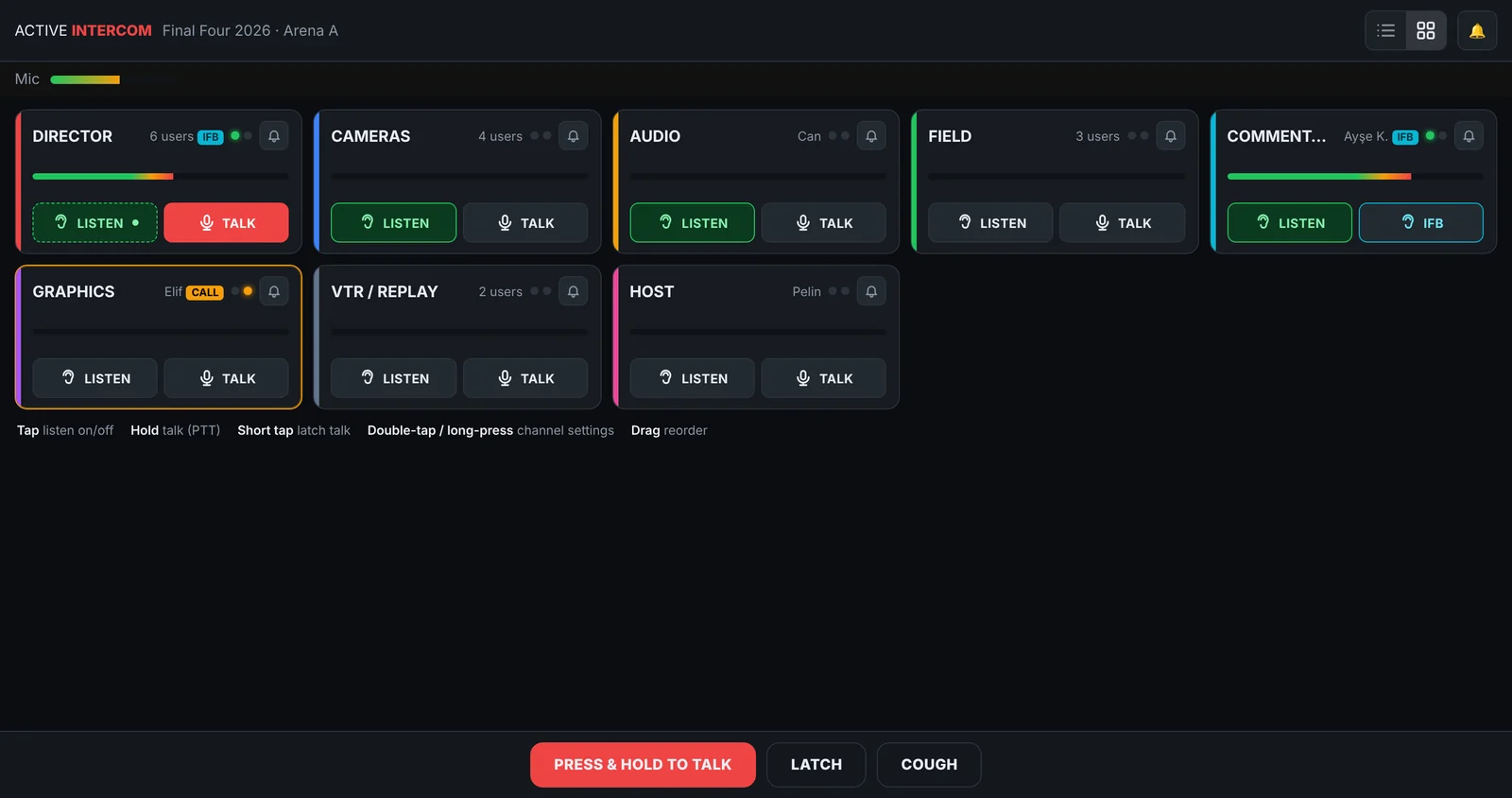
Use the switch in the top bar to toggle Cards / Panel. Every channel becomes a key: colour, name, people count, two LEDs (green = someone talking, amber = call), a level bar and LISTEN / TALK.
Use the keys
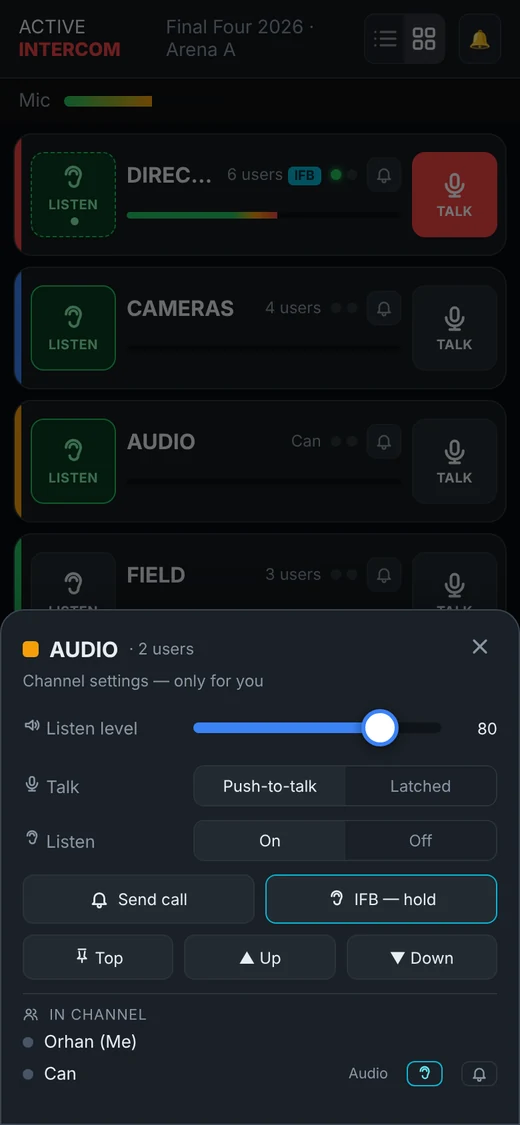
LISTEN: tap on/off. TALK: hold to talk, short tap to latch. Bell: calls everyone in the channel (tone + vibration). Double-click (long-press on the phone) opens the channel settings card; drag keys to reorder on desktop.
Open the matrix
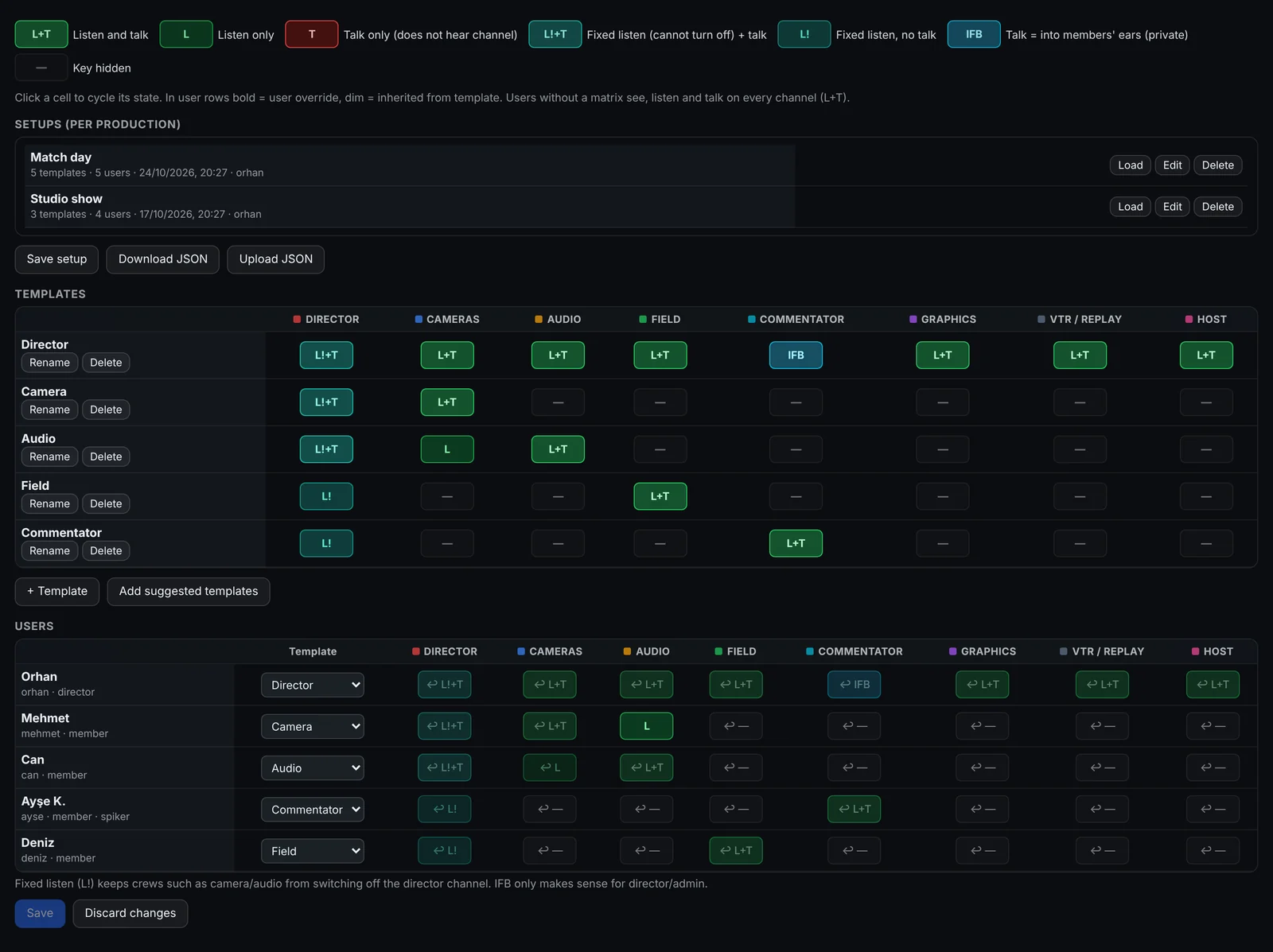
Admin › Matrix: rows are users, columns are channels. Click a cell to cycle: L+T listen and talk · L listen only · T talk only · L!+T fixed listen + talk · L! fixed listen · IFB talk into members' ears · — hidden.
Use templates
Press Add suggested templates to create Director / Camera / Audio / Graphics / Replay / Field / Commentator templates from your channel names. Adjust the cells, then choose a template per user. Bold cells are personal overrides.
Save and switch setups
Press Save — every connected screen updates instantly. Save the layout as a setup ("Match day", "Studio", "Final") and load it with one click on the day. Setups can be downloaded and uploaded as JSON.
Troubleshooting & tips
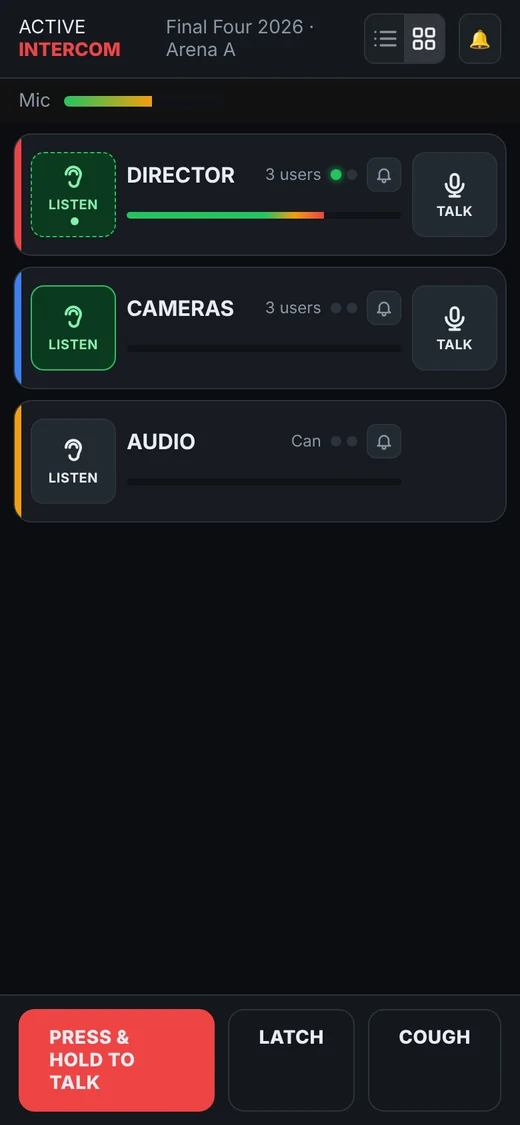
- Camera crews switch the director off by accident
- Give them DIRECTOR as L!+T — fixed listen.
- Commentator should hear but not talk on DIRECTOR
- Use L! for the commentator and set the director's COMMENTATOR key to IFB.
- Need help on the day
- Use the Support button — the Active Production team sees the same matrix and can test the channel with you.
Share this guide
Related solutions
More guides
Start 7-day free trial
No card required · set up in 5 minutes
Start free